SoilWise Geopackage
QField — Quick Guide (Project Loading & Navigation)
Open Soilwise Project
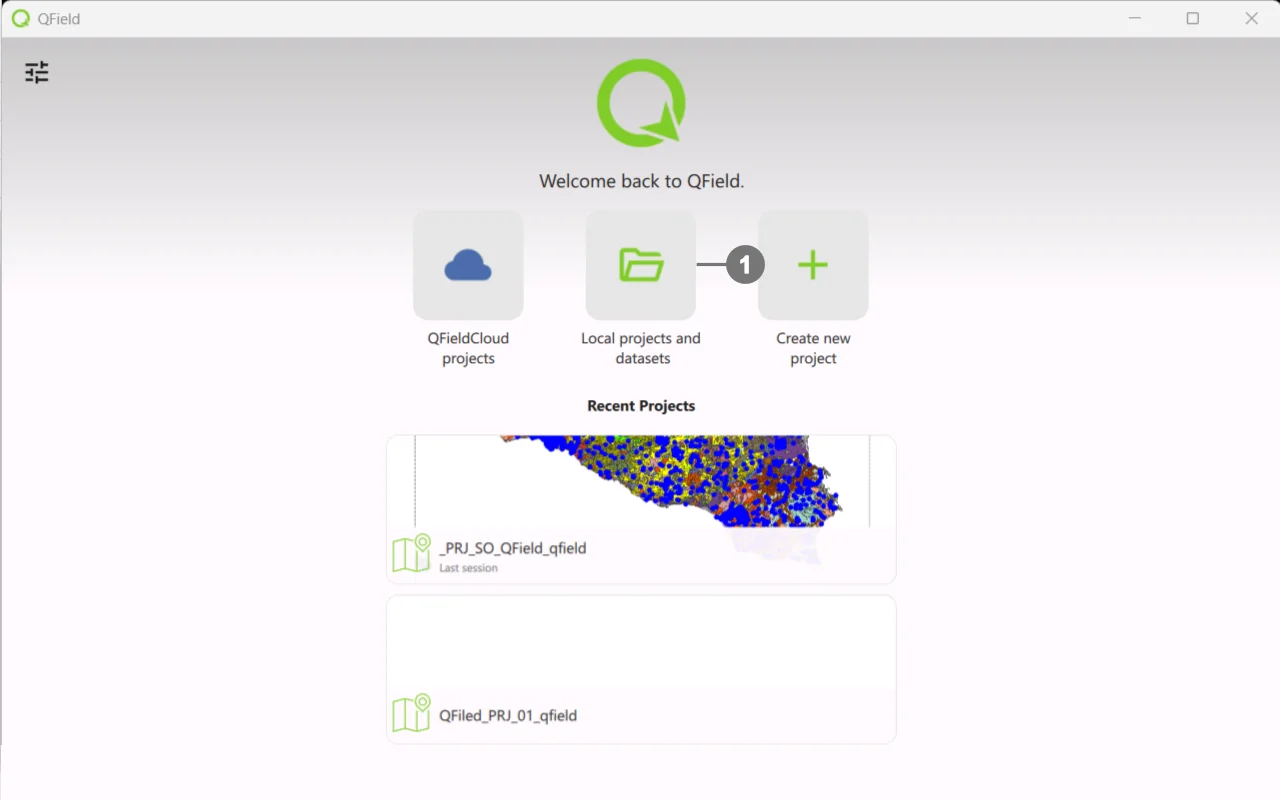 Start QField.
Click on Local project and dataset ①
Navigate through the file system folders and select the `.qgs/.qgz project` . exported from the SoilWise Geopackage.
Wait for layers and styles to load.
Tip
If the project doesn’t open or some layers are missing, check in QGIS that the paths are relative (Project → Properties → Paths).
Interface Navigation
Map
- Pan/Zoom (drag, pinch), Rotation (two fingers).
- GPS: target button to center on your position.
Layer Panel
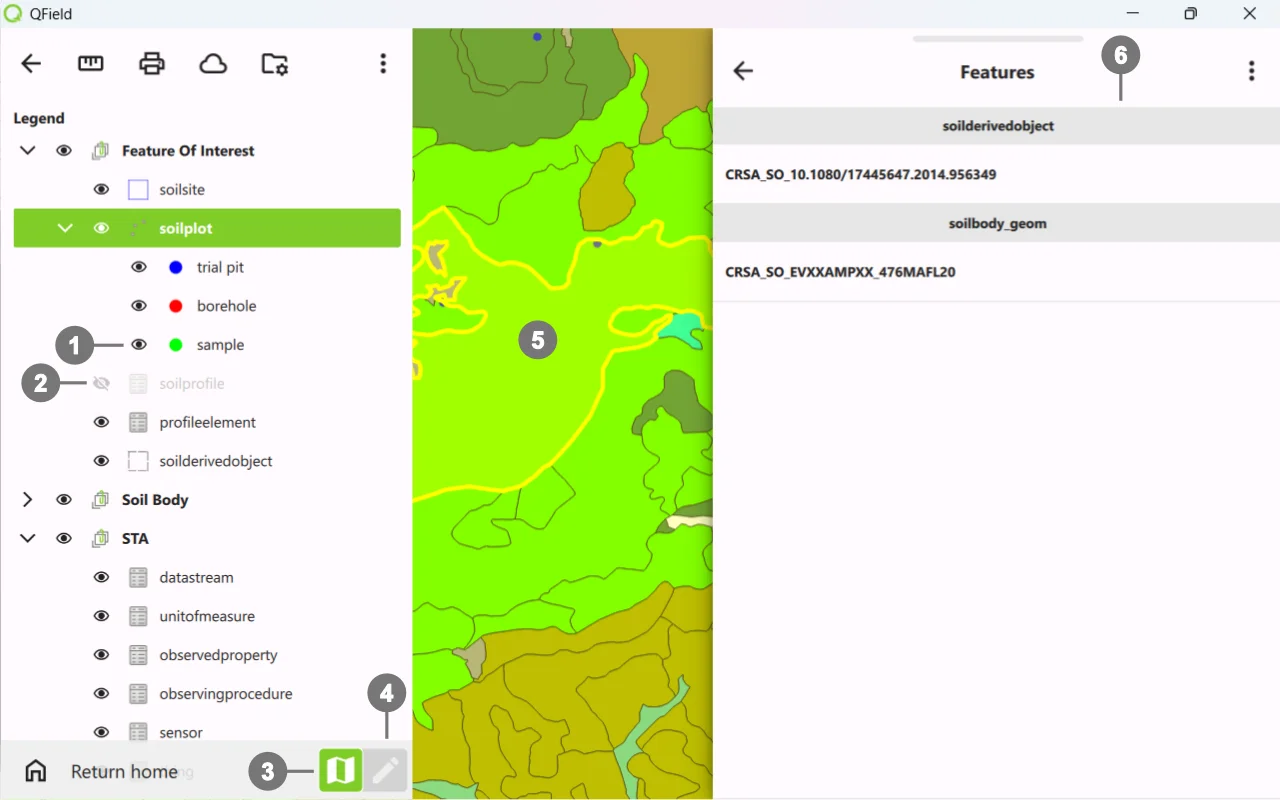 Visibility ① on - ② off
Select the editing layer before editing.
You can easily switch between ③ view mode and ④ edit mode whenever you need to make changes.
When ⑤ selecting/creating, aform ⑥ opens: required fields, pick‑lists, dates, numbers.
Important
This is an introductory guide; for more details on using QField and its plugin, please refer to the official documentation.
Mini‑troubleshooting
- Inaccurate GPS → wait for fix, enable high precision (settings), check location provider.
- Slow map → simplify symbology, reduce raster size, use lighter tiles.