SoilWise Geopackage
Soil Site Form
Open
To open the Soil Site custom forms, go to the Layers panel, right‑click the soilsite layer, and choose Open Attribute Table from the context menu.
Tip
For further information on the custom forms, consult the documents Customized Attribute Forms in QGIS and Navigating GeoPackage Tables via Forms
Edit
The “Soil Site” it’s a polygonal geographic entity. The first step To create a new Soil Site feature is to define its geometry.
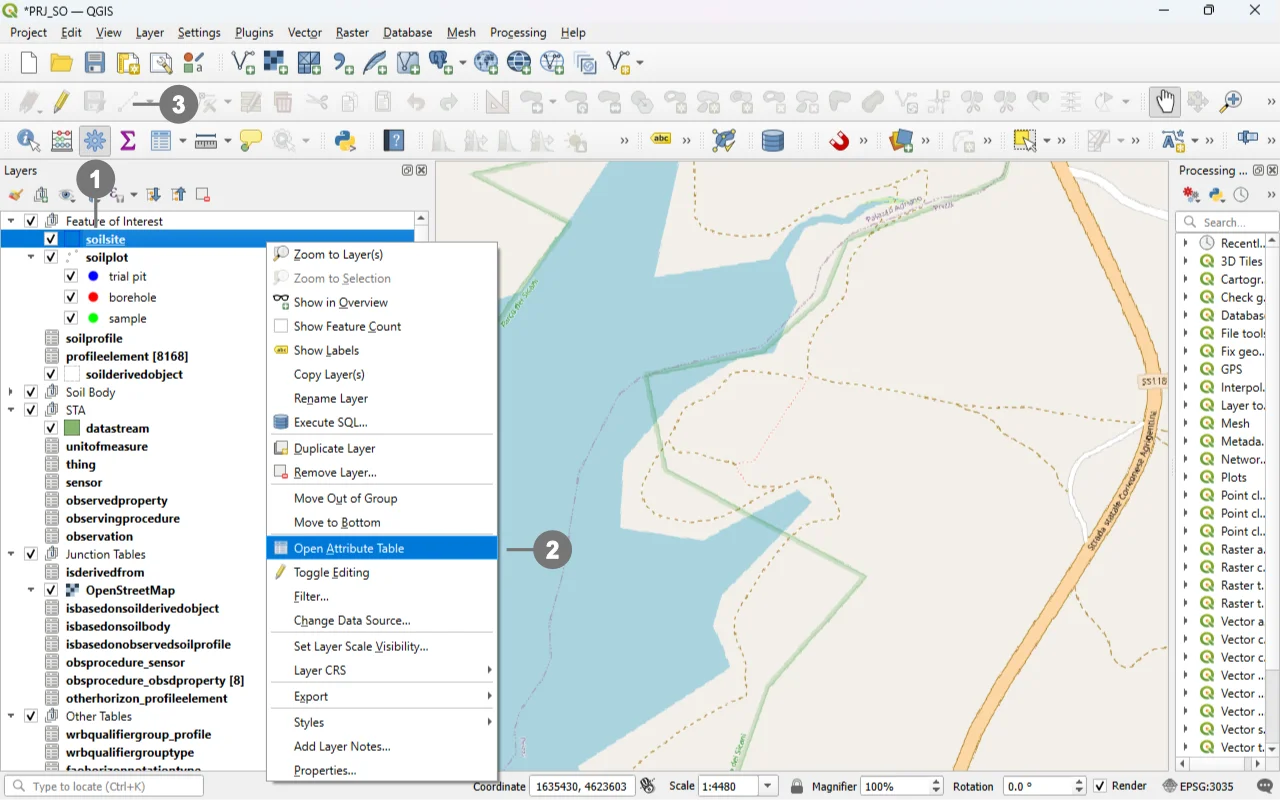 Right-click in the "Layers" panel on the "soilsite", ① and from the menu, select "Toggle Editing" ②.
Alternatively, select only the “Soil Site” layer ① and click the “Toggle Editing” button ③ in the toolbar.
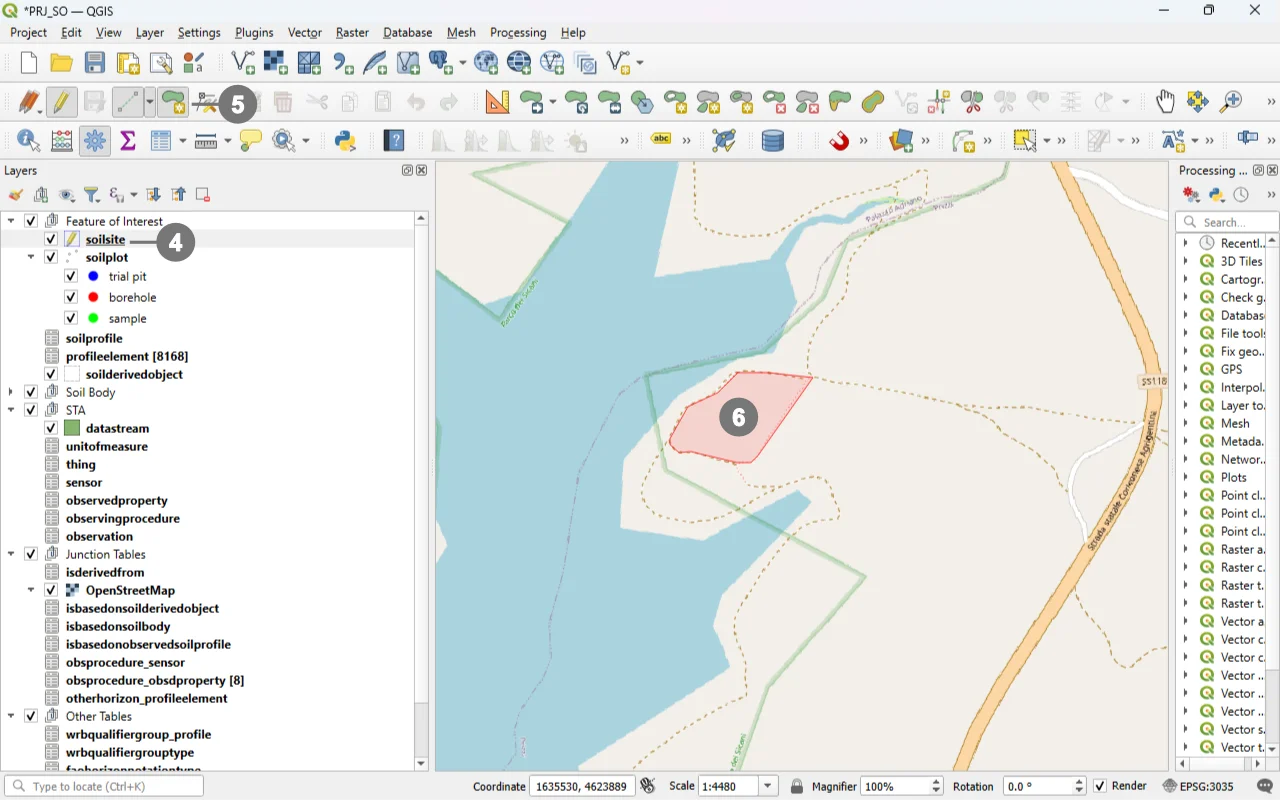 A small pencil icon ④ will appear, indicating that the feature is in edit mode.
In the toolbar, select the "Add Polygon Feature" icon ⑤ and draw the geometry of the new "Soil Site". ⑥
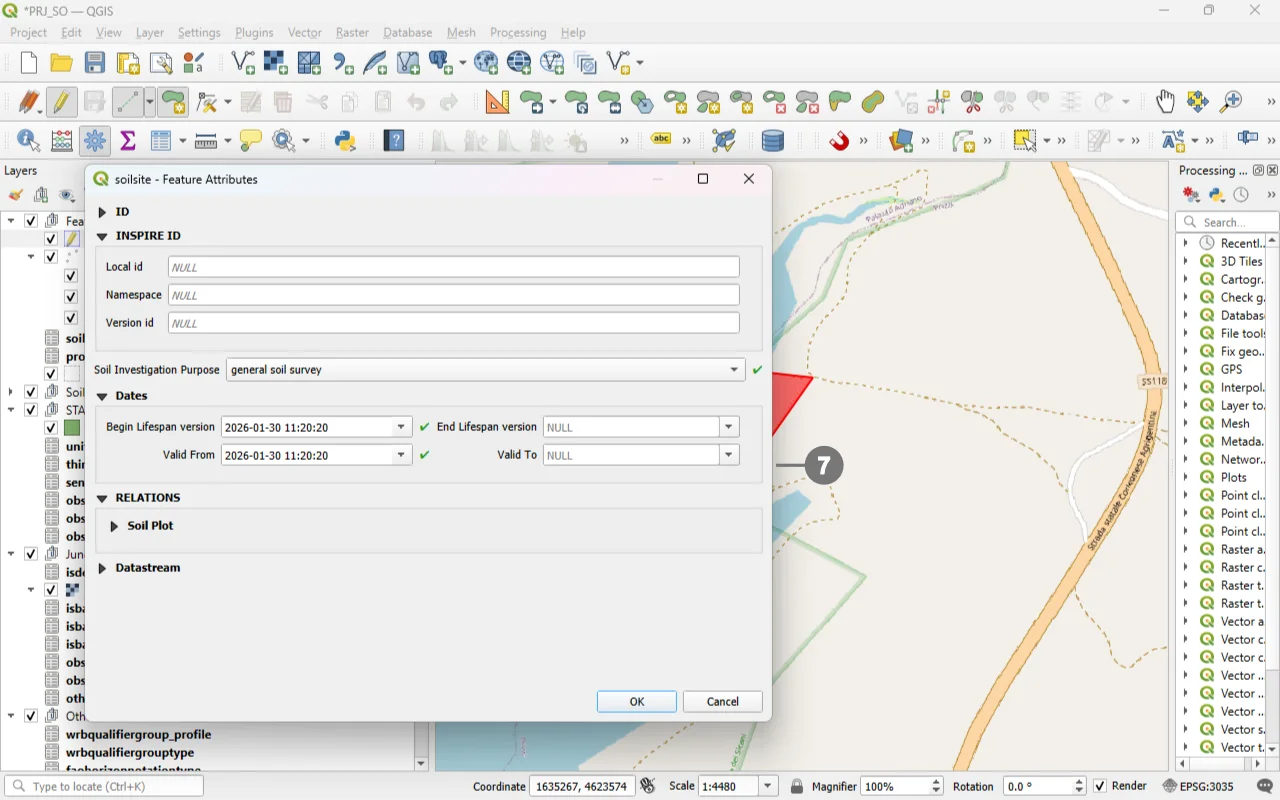 Right-click to close the geometry, and the data entry form will appear. ⑦
Use the widgets provided by the form to modify data.
For detailed information on how to initiate edit mode for a custom form, refer to the Editing Records Through a QGIS Form documentation.
REQUIRED fields
id: primary key (auto-incrementing)Soil Investigation Purpose: TEXT (codelist)Valid From: DATETIME (default: today)Begin Lifespan version: DATETIME (default: today)
ID Group

Fields
-
id- Primary AUTO_INCREMENT INTEGER PRIMARY KEY; it’s the required identifier for GeoPackage tables and is assigned automatically on insert. -
guid- Global identifier in UUID format, stored as text. The field is optional. It’s automatically managed via triggers.
Important
On opening, the ID group is collapsed: there is no need for manual editing, as both fields are system‑managed (the id by the SQLite engine and the guid by triggers), reducing errors and ensuring identifier consistency over time.
INSPIRE ID Group
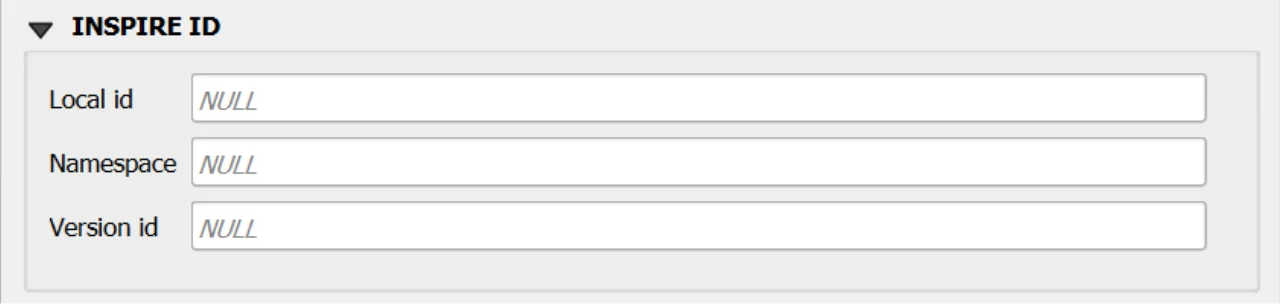
An INSPIRE ID is the external unique identifier assigned to each spatial object in INSPIRE datasets; it ensures uniqueness and persistence and allows external applications to reliably reference the same object over time. The identifier must not be changed during the object’s life cycle; it can also be published as a URI to facilitate web-based referencing. 1
Fields
Local id— Local identifier assigned by the data provider; unique within its namespace.Namespace— Namespace that uniquely identifies the data source/domain of the spatial object.Version id— Identifier of the specific version of the object; optional (voidable) and used to distinguish different versions of the same object.
Important
These fields are not mandatory, but filling them out is strongly recommended: they help uniquely identify the record in forms and across data exchanges.
In particular, localid + namespace form a stable identifier; versionid helps track changes over time.
Constraints
- CHECK:
validfrom <= validto(enforced via BEFORE INSERT/UPDATE triggers). - CHECK:
beginlifespanversion <= endlifespanversion(BEFORE INSERT). - Codelist:
soilinvestigationpurpose ∈ codelist(id)wherecollection='SoilInvestigationPurposeValue'(BEFORE INSERT/UPDATE). - GUID immutability:
guidauto-generated on INSERT; updates toguidaborted. - Versioning: on UPDATE of business fields,
beginlifespanversionset to current time ifendlifespanversionis NULL or future; update aborted ifendlifespanversionis past.
Attribute Reference
For an overview of the attributes used in the custom form, refer to the soilsite table documentation. It provides the key definitions and data types needed to correctly interpret the fields and configure the form within the data model.
Datastream Relationship
Since this table is relationally linked to a SensorThings Datastream, you can add further domain‑specific properties in an STA2‑compatible way by correctly populating the Datastream and Observation tables.
In practice, Datastream holds the series‑level context of the time series, while each Observation record carries the measurement‑level details, reflecting the SensorThings data model in which every observation is organized under a datastream.
Save
For a more comprehensive overview of form‑saving workflows, refer to the detailed documentation in Saving Edits in QGIS Forms.